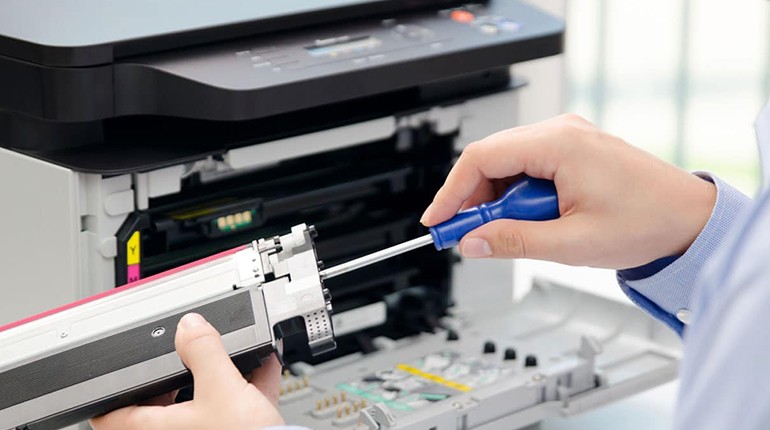












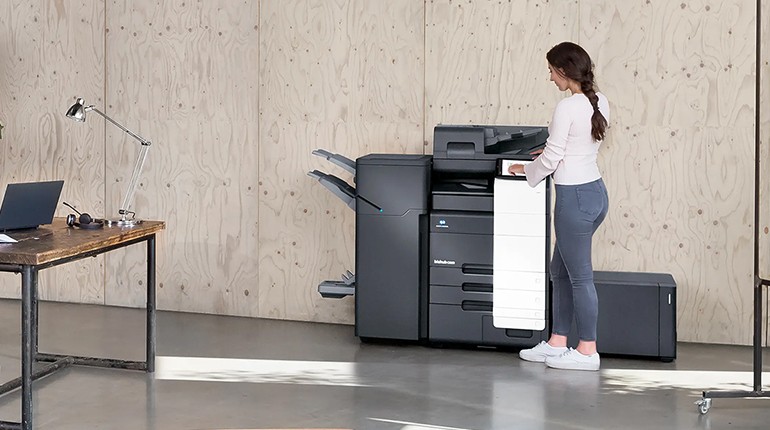
Konica Minolta printers are built tough. They’re the kind of machines you can count on to push out hundreds of pages without a fuss. But even the most dependable office gear has off days. A paper jam here, a weird error code there, or that infamous “printer offline” message that seems to show up right before an important meeting. Unfortunately, workflow inefficiencies, including printer issues, can cause missed deadlines and lost productivity. The good news is that most Konica Minolta printer problems aren’t as bad as they seem.
With a bit of troubleshooting and a few practical fixes, you can usually sort them out without calling for help. Let’s go through some of the most common issues—and how to fix them before your workday goes off the rails.
1. Persistent Paper Jams
Two minutes after the jam is removed and the paper is reloaded, another jam develops. Is it something you recognise? One of three simple variables is usually the source of one of the most common Konica Minolta printing problems:
- Paper storage or quality: Wet, curled, or low-quality paper tends to cling to itself. Only if your ream has been left open in a humid atmosphere would it be required.
- The wrong kind of paper: Are you trying to print on glossy or thick cardstock without adjusting the settings? The rollers don't like surprises.
- Worn rollers: Misfeeds increase in frequency as the rollers deteriorate over time.
How to Fix It
Without tearing, carefully remove the sticky paper, constantly pointing in the direction of the feed. After that, examine the rollers by opening the paper tray. They are probably worn if they feel glassy or smooth. They can be cleaned with isopropyl alcohol and a lint-free cloth, but if that doesn't work, they will need to be replaced.
Are you still jamming? The paper needs to be updated. Make sure your print settings are correct as well. You will always get subpar results if you print on cardstock while the printer thinks it is plain paper.
2. Blurry or faded prints
Few things are more upsetting than printing a crucial document and seeing that half of the text is missing or that the colours appear faded.
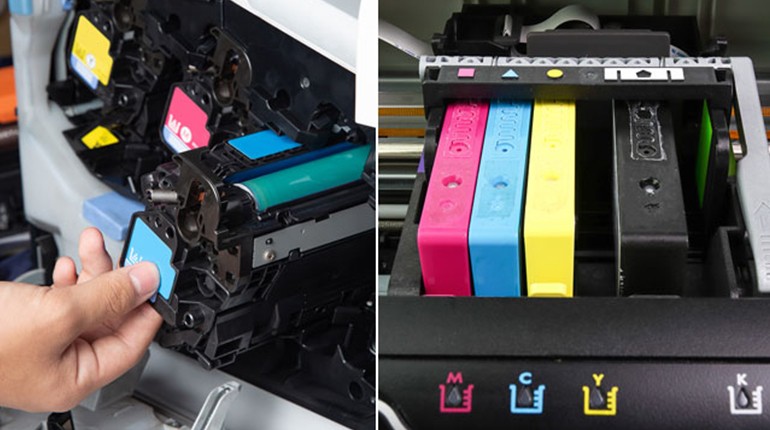
Faint or blurry prints frequently indicate a dirty image unit or problems with the toner cartridge. Occasionally, toner dispersion is the only issue. If a fresh cartridge was just installed, carefully take it out, give it a good shake, and then put it back in. Toner is equally redistributed inside as a result.
Print a test page if that doesn't work. Regular fading on one side typically indicates that the developer unit or printer drum needs to be cleaned or replaced.
3. The printer is stuck on "Offline" or "Not Connected."
After selecting "Print," give it a few seconds. And nothing. The dreaded notice "Printer Offline" then appeared. This is such a common annoyance that, according to research, printer-related problems make up more than 20% of all IT help desk calls in an average office setting.
A loose cable, out-of-date drivers, or even Wi-Fi outages might cause this.
How to Fix It
Make sure the USB or Ethernet cord is securely attached if the printer is wired. Make sure the printer is linked to the right network (not your guest Wi-Fi or an outdated router) for Wi-Fi models.
Remove the printer from Printers & Scanners on your PC, then add it again. It functions similarly to a digital reset button.
Still offline? Restart the printer and the router. A quick power cycle often resolves stubborn connection bugs.
For larger offices with multiple printers on the same network, giving each printer a static IP address helps prevent future disconnects.
4. Odd Error Messages or Codes
It may seem concerning if your display reads "C2152" or "Call Service," but these codes are just your printer's way of alerting you to a problem.
Although the code list varies slightly depending on the Konica Minolta model, the following are some common suspects:
C2152: Transfer belt malfunction upon returning to the starting position
C3721: Problem with fuser temperature.
C2557: Problem with unusually low toner density
C6751: Failure of CCD clamp/gain adjustment
How to Fix It
After turning off the printer for thirty seconds, switch it back on. Sometimes a reboot resolves small issues.
Look up the code on Konica Minolta's official help page or consult the user manual if the code comes up again. Certain problems, such as fuser faults, necessitate a professional Konica Minolta printer repair because these parts operate hot and are dangerous to replace without expertise.
6. Spots or Lines on the Page
Toner buildup on the rollers or debris on the drum are typically the causes of lines, streaks, or random dots on printed pages. This may also occur following a paper jam.
How to Fix It
Check for smudges or toner markings on the drum and rollers after opening the printer. Wet wipes or compressed air can harm components, so always use a soft, dry cloth instead.
The drum is scraped if the scratches consistently emerge in the same spot. It's time for a replacement at that point.
Internal components that are difficult for consumers to reach can also be routinely cleaned by a Konica Minolta expert. It is fast and typically greatly increases the printer's lifespan.
7. Rubbing off or smudging toner
When you touch printed text, does it smear? Yes, the toner is not adhering to the paper.
Verify your paper type settings before requesting repairs. The fuser unit is typically the source of the issue. You're either printing on the incorrect kind of paper setting, or it's not heating up sufficiently.
If changing the settings doesn't work, it's probably time for a professional Konica printer servicing since the fuser unit has worn out. DIY repairs are risky and have the potential to permanently harm your equipment due to the fuser's tremendous heat.
8. How to Fix a Konica Minolta Printer When Everything Else Fails
Sometimes the printer simply won't comply, regardless of what you try—new toner, fresh paper, power cycles. At that point, you call in the professionals!
Every Konica Minolta printer troubleshooting issue you can think of is handled by our staff at Printer Repair Centre. What's the best part? We come to you. You won't have to wait weeks for service or transport your printer across town.
Whether it's a tiny home printer or a multipurpose office beast, we take care of everything from firmware updates to part repairs.
How Frequent Upkeep Avoids Future Problems
Yes, it's wonderful to have a repair crew on call. However, prevention always outperforms repair. Proactive maintenance can reduce repair and replacement costs by 12–18%, according to research.
Consider it similar to auto repair. You wouldn't put off changing the oil till the engine failed. Here, the same reasoning holds. Regular Konica printer maintenance maintains your device quiet, effective, and less likely to malfunction.
When a technician performs routine maintenance, they will:
- Internal sensors and rollers should be cleaned.
- Update drivers and firmware.
- Replace worn-out parts before they break.
- Test print quality and adjust calibration.
This easy procedure maintains your equipment operating quietly and effectively, significantly lowering the likelihood of unplanned malfunctions that could ruin your workday.
Final Thoughts
In the end, the majority of printer problems have an obvious root cause and an easy fix. Spend some time observing, cleaning, and testing. Often, a little perseverance—as well as perhaps a restart—goes a long way.
Professional service is the best investment you can make if things still don't work. Our staff at SOS is only a phone call away when you're prepared to restore your Konica Minolta to ideal printing condition.
Because, let's face it, everyone's day goes more smoothly when the printer is operational.